AI Music Video Generator from Audio File [2026 Guide]
Use an AI music video generator from an audio file. Learn MP3, WAV, AAC, and M4A prep, upload limits, credits, 16:9/9:16 output, and full MV vs visualizer workflows.
![AI Music Video Generator from Audio File [2026 Guide]](/_next/image?url=%2Fimages%2Fblog%2Fai-music-video-from-audio-file.png&w=3840&q=75 "AI Music Video Generator from Audio File [2026 Guide]")
Last reviewed: April 22, 2026. If you are searching for an AI music video generator from an audio file, the real question is not only "can it accept MP3?" It is whether the tool can read the song structure, separate vocal and instrumental moments, generate scenes by section, and export the format you need.
VibeMV is built around that file-upload workflow. You upload MP3, WAV, AAC, or M4A; the app analyzes the audio; then you choose visual direction, generation mode, and aspect ratio. The current product facts are: 3 seconds to 5 minutes, 100 MB upload limit, 16:9 and 9:16 output, 720p default resolution, optional 1440p upscale, and 2 credits per generated second.
This page is the technical audio-file guide. For the broader creation workflow, read How to Make a Music Video with AI. If your search is closer to "turn a finished song into a video", use How to Turn a Song into a Music Video with AI. If you are comparing platforms first, start with the best AI music video generators.
Which guide should you read next? This page is the audio-file workflow for MP3, WAV, AAC, and M4A uploads. If you need the broader AI creation process, read How to Make a Music Video with AI. If your search is closer to "song to video AI", use How to Turn a Song into a Music Video with AI. If you are comparing tools first, start with the best AI music video generators.
Direct Answer: Audio File Requirements
| Item | VibeMV support | Practical advice |
|---|---|---|
| Input formats | MP3, WAV, AAC, M4A | Use WAV for master exports; use 320kbps MP3 when file size matters |
| File size | Up to 100 MB | Compress long WAVs to high-bitrate MP3 if needed |
| Track length | 3 seconds to 5 minutes | For longer songs, render the strongest section first |
| Output ratios | 16:9 and 9:16 | Choose before generation; orientation changes require rerendering |
| Default resolution | 720p | Use optional 1440p upscale for important release assets |
| Credit assumption | 2 credits per generated second | 30 sec = about 60 credits; 3 min = about 360 credits |
| Best use | Full AI MV from a song file | Use free tools for simple visualizers or short loops |
Audio Prep Checklist Before Upload
Good audio preparation improves segmentation, vocal detection, and lip-sync. Spend a few minutes checking the file before you spend credits.
- Export the best source you have. WAV is ideal. MP3 at 320kbps is usually fine. Converting a low-quality MP3 to WAV does not restore lost detail.
- Avoid clipping. If the master is distorted or hitting 0 dB constantly, section detection and vocal detection can become less reliable.
- Keep vocals clear. Lip-sync works best when the lead vocal sits clearly above the instrumental. Heavy reverb, vocoder, or dense effects can reduce accuracy.
- Trim long silence. Remove empty intros and outros unless you intentionally want visuals there. Silence still consumes generation time and credits.
- Check length and file size. Keep the upload between 3 seconds and 5 minutes and under 100 MB.
- Decide the publishing format early. Generate 16:9 for YouTube-style releases and 9:16 for TikTok, Reels, Shorts, and vertical teasers.
How the Audio-to-Video Workflow Works
1. Upload the audio file
Start with a finished mix in MP3, WAV, AAC, or M4A. You do not need a separate vocal stem or lyric file. A clean mixed file is enough for the first pass.
2. Let the AI analyze the song
The system analyzes energy, likely section changes, vocal regions, and transition points. This is what lets a music-specific generator create a video by song structure instead of treating the audio as background music.
The output of this step should help answer:
- Where do intro, verse, chorus, bridge, and outro sections begin?
- Which sections contain singing or rapping?
- Which moments should feel calmer, more energetic, or transitional?
- Which sections are better for lip-sync versus beat-synced visuals?
3. Review segments before rendering
Do not skip this step. If a split lands in the middle of a phrase, adjust it before rendering. If a quiet vocal is missed, mark the segment as vocal or use a mode that fits the content better. Fixing structure before generation is cheaper than regenerating a whole video after the fact.
4. Choose normal, lip-sync, or mixed mode
Normal mode is best for beat-synced visuals, environments, abstract scenes, and instrumental sections.
Lip-sync mode is best for vocal sections where a character should appear to sing or rap the track. It requires a suitable character reference image.
Mixed mode is usually the strongest music-video approach: lip-sync for verses and choruses, normal mode for intros, bridges, drops, solos, and transitions. For a deeper decision guide, read lip-sync vs beat-sync music videos.
5. Set visual direction
Use AI Director as a starting point or write prompts manually. Good prompts describe concrete visual elements: subject, environment, lighting, color palette, camera feel, and mood.
Weak prompt: "cool dark video"
Stronger prompt: "solo vocalist under blue stage light in an empty warehouse, smoke in the background, slow cinematic camera movement, muted black and silver palette"
6. Generate, review, and export
Generation cost follows the current 2 credits per generated second rule. A 30-second test clip uses about 60 credits. A 3-minute song uses about 360 credits. A 5-minute song uses about 600 credits. Upscale and regeneration choices may add time or credit usage depending on the workflow.
After generation, review the full video before downloading:
- Do transitions land near musical changes?
- Does lip-sync only appear where it helps?
- Do scenes feel consistent enough across the song?
- Is the aspect ratio correct for the target platform?
- Should only weak segments be regenerated instead of the whole video?
Full AI Music Video vs Visualizer
Not every audio file needs a full AI-generated music video. Use the lighter workflow when the job is just a teaser or loop.
| Need | Better starting point | Why |
|---|---|---|
| Full MV from a finished song | AI music video generator | Segment-level generation, style direction, optional lip-sync, full export |
| Cover-art video for a demo | MP3 to video converter | Fast asset with artwork and audio |
| Beat-reactive visual loop | Music visualizer | Good for demos, social teasers, DJ clips |
| Waveform or spectrum video | Audio visualizer video maker | Browser-based waveform, spectrum, radial, or beat pulse visuals |
| Spotify-style short loop | Spotify Canvas maker | 3-8 second vertical loop workflow |
| On-screen lyrics | Lyric video maker | Better when text sync matters more than generated scenes |
This distinction matters for SEO and for actual user satisfaction. A visualizer is not a full AI music video, and a full MV render is overkill when you only need a short loop.
Short Tool Comparison for Audio-File Workflows
| Tool type | Fits audio-file MV workflow? | Main tradeoff |
|---|---|---|
| VibeMV | Yes, purpose-built for uploaded songs | Best fit when you want automatic segmentation, optional lip-sync, and a finished MV |
| General AI video generators | Partially | Strong individual clips, but music sync and assembly are manual |
| Audio-reactive visualizers | Partially | Good loops and abstract motion, but not a full scene-based MV |
| Traditional video editors | Only manually | Maximum control, but you source footage and sync everything yourself |
For a broader platform-by-platform evaluation, use the best AI music video generators. This page stays focused on the file-upload workflow.
Common Problems
Upload fails
Check the format, file size, and duration first. Use MP3, WAV, AAC, or M4A; keep the file under 100 MB; keep the track between 3 seconds and 5 minutes. If the file plays locally but fails to upload, re-export it from your DAW or convert it to a clean MP3/WAV.
Segments feel off
This usually comes from unclear transitions, tempo changes, very sparse arrangements, very dense mixes, or long silence. Review segment boundaries before generating. For unusual structures, manual segment adjustment is normal.
Lip-sync does not activate
The most common causes are no character image, vocals too quiet in the mix, or heavily processed vocals that the model does not treat as clear vocal content. Try a clearer mix, a front-facing character image, or normal mode for difficult sections.
Output feels lower resolution than expected
VibeMV defaults to 720p. If the video is for an important YouTube release, website embed, or press asset, use the optional 1440p upscale where available. For fast social testing, 720p may be enough.
Frequently Asked Questions
Can I make a music video from just an MP3 file?
Yes. VibeMV accepts MP3 files and analyzes the mixed audio to generate synchronized visuals. Use 320kbps MP3 when possible. Lower-bitrate files may still work, but analysis and vocal detection can be less reliable.
What audio file format works best?
WAV is best when you have the master export. MP3 at 320kbps is a practical default. AAC and M4A also work well. Avoid low-bitrate files, clipped masters, and noisy exports when precision matters.
How long can my audio file be?
VibeMV supports 3 seconds to 5 minutes, up to 100 MB. For songs longer than 5 minutes, render the strongest section first or create multiple sections as separate projects.
Does the AI analyze my audio to create the video?
Yes. Music-specific AI video generation uses audio analysis to detect structure, energy, vocal regions, and transition points. Those signals guide segmentation, mode choice, and pacing.
Can I generate lip-sync from a mixed audio file?
Yes. You can upload a complete mixed song. VibeMV detects vocal sections internally, and you can use lip-sync mode on those sections with a character image.
Can I use the result on YouTube, TikTok, or Spotify Canvas?
You can export platform-ready video files, but you should still follow each platform's current AI-content, music-rights, and format policies. Use 16:9 for standard YouTube videos, 9:16 for vertical social clips, and short loop tools for Spotify Canvas-style assets.
Start from Your Audio File
The safest workflow is simple: prepare a clean audio export, upload it, review the detected structure, choose the right generation mode per section, and render only after the file and aspect ratio are correct.
Ready to try it? Use the AI music video generator for a full MV workflow, or start with a lightweight music visualizer if you only need a fast teaser.
More Posts
![Audio to Video AI: Complete Guide to Converting Sound into Visuals [2026]](/_next/image?url=%2Fimages%2Fblog%2Faudio-to-video-ai-guide.png&w=3840&q=75 "Audio to Video AI: Complete Guide to Converting Sound into Visuals [2026]")
Audio to Video AI: Complete Guide to Converting Sound into Visuals [2026]
Turn any audio file into video with AI. Covers music videos, podcast clips, visualizers, and audio-video sync — with tool comparisons, workflows, and pricing for each use case.

How to Make a Music Video in 2026: Complete Beginner's Guide
Learn how to make a music video with AI, phone footage, or a traditional production workflow. Compare methods, budgets, formats, and next steps for YouTube, TikTok, and Instagram.
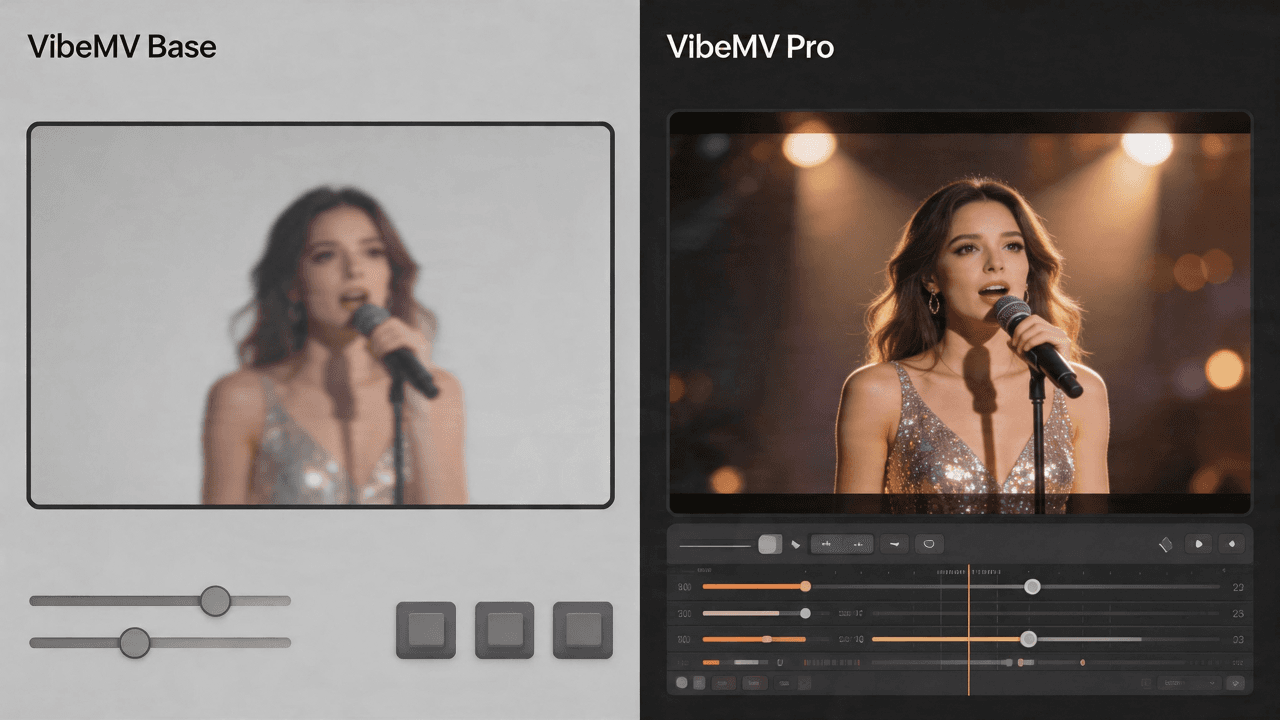
VibeMV Base vs Pro: Which Model Tier Should You Choose?
Not sure if VibeMV Pro is worth 6x the credits? This guide breaks down exactly when Base is enough and when Pro makes a visible difference — with real cost examples.