How to Make a Music Video with AI: Complete Guide [2026]
Learn how to make a music video with AI in 6 steps: prepare audio, analyze the song, choose normal or lip-sync mode, direct visuals, export 16:9 or 9:16, and review limits.
![How to Make a Music Video with AI: Complete Guide [2026]](/_next/image?url=%2Fimages%2Fblog%2Fhow-to-make-music-video-with-ai.png&w=3840&q=75 "How to Make a Music Video with AI: Complete Guide [2026]")
Last reviewed: April 22, 2026. This is the AI-only music video workflow: upload audio, let the AI analyze the song, direct visuals by section, choose normal or lip-sync generation, export, and review. If you want non-AI options too, read How to Make a Music Video in 2026. If you need file-format details, use AI Music Video from Audio File.
Which guide should you read next? This is the AI-only workflow. For a broader comparison of AI, phone/DIY, and professional production, start with How to Make a Music Video in 2026. For a finished-track upload workflow, use AI Music Video from Audio File. For the exact "turn a song into a video" path, read How to Turn a Song into a Music Video with AI. If you are still choosing a platform, compare the best AI music video generators.
6-Step TL;DR
- Prepare the song file. Use WAV or high-quality MP3 when possible. Keep it under 100 MB and between 3 seconds and 5 minutes for VibeMV.
- Upload and analyze. Let the AI detect energy, sections, vocals, and transition points.
- Review the storyboard. Use AI Director or edit prompts by segment so verses, choruses, bridges, and drops feel intentional.
- Choose generation modes. Use normal mode for beat-synced scenes and lip-sync mode for vocal sections with a character image.
- Pick output format. Choose 16:9 for YouTube-style releases or 9:16 for TikTok, Reels, and Shorts before rendering.
- Generate, review, and iterate. Watch the full video, regenerate weak segments, then export the final MP4.
What You Need Before You Start
| Input | Why it matters | Practical note |
|---|---|---|
| Finished audio file | The song drives segmentation, pacing, and vocal detection | MP3, WAV, AAC, and M4A work in VibeMV |
| Clean vocal mix | Lip-sync depends on clear vocal regions | Heavily buried or distorted vocals can reduce accuracy |
| Visual direction | Prompts guide style and consistency | Start with mood, setting, lighting, palette, subject |
| Aspect-ratio decision | Orientation is a generation choice | 16:9 and 9:16 require separate renders |
| Character image, optional | Needed for lip-sync mode | Front-facing images with visible mouths work best |
Step 1: Prepare Your Audio
Use the best export you have. WAV is ideal, while MP3 at 320kbps is usually a good practical choice. Avoid clipping, long silence, and very low-bitrate files. If the vocals are buried, try a version with clearer lead vocals before using lip-sync mode.
VibeMV's current audio-file limits are 3 seconds to 5 minutes and 100 MB. For longer songs, choose the strongest release section first, then render additional sections later if needed. For a deeper file-prep checklist, read AI music video from audio file.
Step 2: Upload and Let AI Analyze the Song
After upload, a music-specific workflow analyzes the song rather than treating it as background audio. The analysis looks for:
- Song sections such as intro, verse, chorus, bridge, drop, and outro
- Vocal regions that may be eligible for lip-sync
- Energy changes that should affect visual intensity
- Natural transition points for scene changes
This is the main difference between a music-video generator and a generic video model. A generic model can create strong clips, but you still need to assemble and sync them. A music-aware workflow uses the audio structure as the timeline.
Step 3: Build or Refine the Storyboard
Use AI Director for a fast first storyboard, then review the prompts. A good AI music video usually changes visual energy by section:
| Song section | Useful visual direction |
|---|---|
| Intro | Establishing shot, atmosphere, slow motion |
| Verse | Character, narrative, lower intensity |
| Pre-chorus | Building motion, tighter framing |
| Chorus | Strongest visuals, wider shots, higher energy |
| Bridge | Contrast, new setting, palette shift |
| Outro | Return to the core visual idea or fade down |
Edit prompts before generation if they drift from your brand, genre, or song mood. It is cheaper to fix direction before rendering than after.
Step 4: Choose Normal, Lip-Sync, or Mixed Mode
Normal mode creates beat-synced visuals. Use it for instrumentals, abstract scenes, environments, b-roll, drops, and transitions.
Lip-sync mode creates a character performance for vocal sections. Use it when the vocal performance should be the center of the video and you have a suitable character image.
Mixed mode is often best. For example: normal mode for the intro, lip-sync for verse and chorus, normal mode for the bridge or solo, lip-sync again for the final chorus. This keeps the performer moments meaningful while giving the video more variety. For a detailed comparison, read lip-sync vs beat-sync music videos.
Step 5: Direct the Visual Style
Good prompts are concrete. Describe the frame, not just the feeling.
Weak prompt: "make it cinematic and cool"
Stronger prompt: "singer alone in a small rehearsal room, warm tungsten light, old posters on the wall, handheld camera feel, muted red and amber palette"
Use five prompt ingredients:
- Subject: performer, landscape, object, crowd, abstract shape
- Environment: city street, studio, stage, desert, bedroom, surreal space
- Lighting: neon, soft window light, spotlight, overcast, high contrast
- Color: warm amber, cold blue, black and white, saturated pink
- Camera feel: close-up, wide shot, slow dolly, handheld, static frame
Step 6: Generate, Review, and Export
VibeMV currently uses 2 credits per generated second. That means about 60 credits for a 30-second clip, 360 credits for a 3-minute song, and 600 credits for a 5-minute song before optional upscale or regeneration.
Review the output before downloading:
- Do transitions line up with the music?
- Does the visual energy rise and fall with the song?
- Are lip-sync sections used only where vocals are clear?
- Are there weak segments that should be regenerated individually?
- Is the output 16:9 or 9:16 as intended?
Export as MP4 when the result is ready. Use optional 1440p upscale for important release assets where higher detail matters; use 720p for faster tests and many social drafts.
Platform Format Guidance
| Platform use | Recommended output | Notes |
|---|---|---|
| YouTube full music video | 16:9 | Use a custom thumbnail and complete metadata |
| TikTok/Reels/Shorts | 9:16 | Start with a strong chorus, drop, or lyric moment |
| Spotify Canvas-style asset | 9:16 short loop | A visualizer or Canvas tool may be faster than a full MV render |
| Website or press kit | 16:9, upscale if needed | Prioritize the most polished version |
For platform-specific strategy, read AI music video for YouTube and AI music video generator for TikTok.
Common Mistakes
Making the page too generic
If every section uses the same style prompt, the video can feel flat. Give each major song section a reason to exist visually.
Starting in the wrong aspect ratio
Do not generate 16:9 if the main release is vertical. Cropping later can cut off faces, lyrics, and important action.
Using lip-sync everywhere
Lip-sync is strongest when the vocal is clear and the viewer benefits from a performer moment. Instrumental sections often look better with normal beat-synced visuals.
Expecting one prompt to solve everything
AI video is iterative. Plan to adjust prompts or regenerate a small number of weak segments.
Limitations and Honest Tradeoffs
AI music video generation is useful, but it is not magic.
- It does not replace filmed live-action performance when you need real locations, real actors, or exact choreography.
- VibeMV's default output is 720p; use optional 1440p upscale where available for higher-detail release assets.
- Songs longer than 5 minutes need section-based workflows.
- Lip-sync quality depends on vocal clarity and the character reference image.
- General AI video tools may produce strong short clips, but they usually require manual music sync and assembly.
These limits are why the best workflow is not "press one button and never review." It is audio analysis, storyboard review, selective generation, and targeted iteration.
Frequently Asked Questions
How do I make a music video with AI?
Prepare a clean audio file, upload it to a music-focused AI video tool, let the AI analyze song sections and vocals, choose normal or lip-sync mode per section, refine the visual prompts, generate the video, then review and export in 16:9 or 9:16.
Do I need video editing skills?
No. VibeMV can handle the core workflow from audio analysis to assembled output. Editing skill still helps for captions, title cards, and platform-specific polish.
Can AI make a professional-quality music video?
AI can create usable release and social-video assets, especially for stylized, animated, abstract, or character-driven concepts. It does not replace every live-action production. Use it where speed, iteration, and music-aware generation matter most.
How much does an AI music video cost?
VibeMV uses 2 credits per generated second. The free tier includes 50 one-time credits for testing, enough for about 25 seconds. A 3-minute song uses about 360 credits before upscale or regeneration. Paid subscriptions start at $19/month and add monthly credits, commercial-use permission, and higher throughput.
Can I make a vertical music video for TikTok with AI?
Yes. Choose 9:16 before generation. If you also need YouTube, create a separate 16:9 version from the same storyboard and prompts.
What makes a good AI music video prompt?
Use concrete visual details: subject, environment, lighting, color palette, mood, and camera feel. Avoid vague prompts like "cool" or "cinematic" unless you define what that means visually.
Start Creating
The strongest AI music videos are planned by song section. Start with a clean audio file, let the AI analyze the structure, use lip-sync only where it helps, and regenerate the few segments that need improvement.
Ready to try the workflow? Start with the AI music video generator, or compare pricing if you need enough credits for a full song or multiple versions.
More Posts
![Audio to Video AI: Complete Guide to Converting Sound into Visuals [2026]](/_next/image?url=%2Fimages%2Fblog%2Faudio-to-video-ai-guide.png&w=3840&q=75 "Audio to Video AI: Complete Guide to Converting Sound into Visuals [2026]")
Audio to Video AI: Complete Guide to Converting Sound into Visuals [2026]
Turn any audio file into video with AI. Covers music videos, podcast clips, visualizers, and audio-video sync — with tool comparisons, workflows, and pricing for each use case.

How to Make a Music Video in 2026: Complete Beginner's Guide
Learn how to make a music video with AI, phone footage, or a traditional production workflow. Compare methods, budgets, formats, and next steps for YouTube, TikTok, and Instagram.
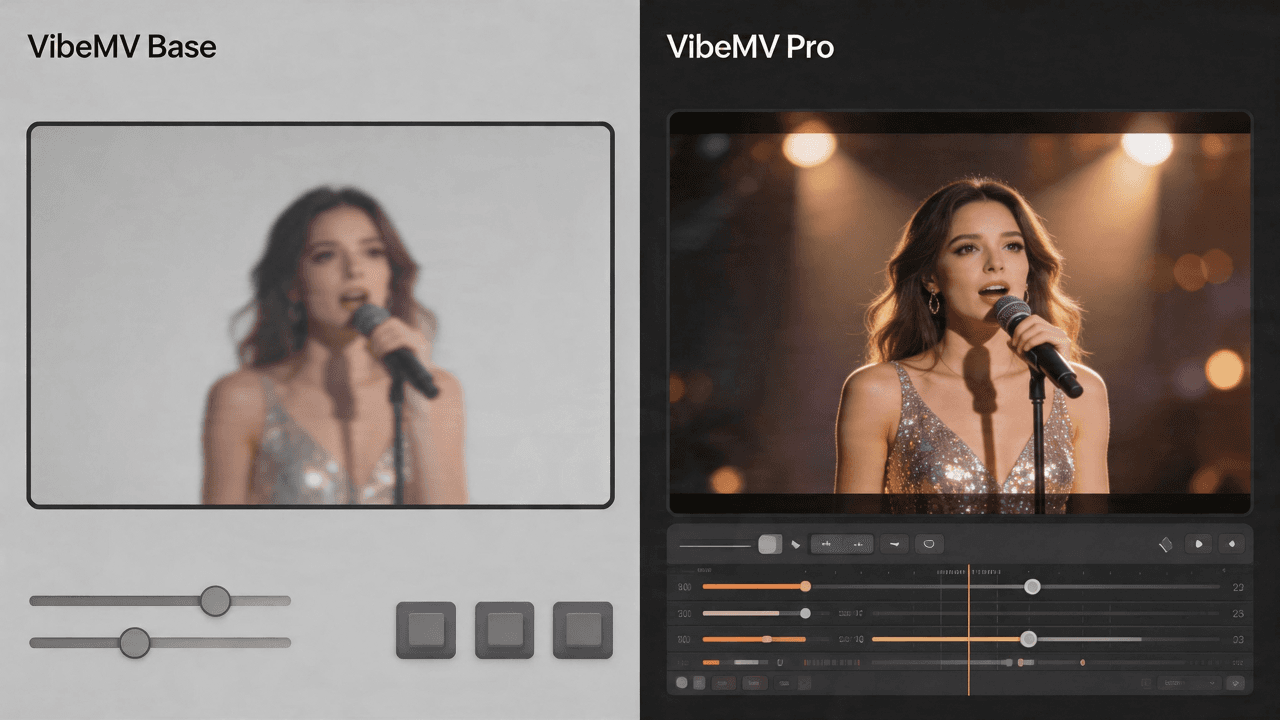
VibeMV Base vs Pro: Which Model Tier Should You Choose?
Not sure if VibeMV Pro is worth 6x the credits? This guide breaks down exactly when Base is enough and when Pro makes a visible difference — with real cost examples.